
Article: Quick Post - If you typically post a lot of custom open shifts, this feature can be useful
NOTE: Be cautious with this feature. This feature opens a new tab that allows posting of many open shifts very quickly.
Process:
- Navigate to the Shift Tab and select Quick Post:

- Start by selecting the department where the open shifts are posted, as well as the type of staff member needed (job type), and the type of shift. You can also edit the default start and end times of the shift, as well as the number of unpaid minutes.
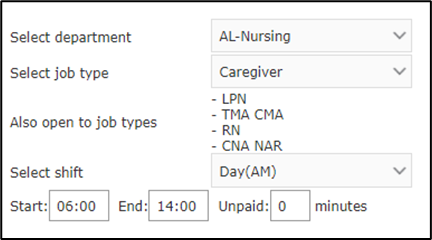
- If a shift(s) already exists for the times entered, they display in the calendar below. Some dates in the calendar have a number in them. This indicates there is a shift posted on that date, and the number represents how many people are needed on that shift.
- The numbers below the number of people needed are how many people are scheduled and how many open shifts there are. Typically, these numbers add up to the number displayed in the date cell.
- For example: three people are needed, and this is what displays in the date cell. Below that it lists that two people are scheduled, and there is one open shift (see the Saturday shift below).
- Add a Shift - Click into the cell on the date that you want to post the shift. Enter the number of people needed for that shift.
- ***Please note - you should enter the TOTAL number of employees needed for this shift, not just the amount of employees you want to add.
- Click Save.

- Change number of people needed on a shift:
- Click in the cell for the date whose need you want to change.
- Delete the old number and enter a new number of people needed. You can enter any number from 0 on up. Enter 0 to indicate there is no need for that shift essentially to close that shift for requests.
- ***Please note - you should enter the TOTAL number of employees needed for this shift, not just the amount of employees you want to add
- Click Save.

- All changes are highlighted in yellow. To accept these changes, click the Save button at the bottom. Click Reset to revert to the original values.

- Click the forward arrow to view/edit shifts for future months.

For any additional questions, please contact Schedulay! at contact@schedulay.com and we would be more than happy to assist!
