
Article:
Video Reference:
Process:
- Unpublished shifts are not visible in the app for staff or managers on the calendar page.
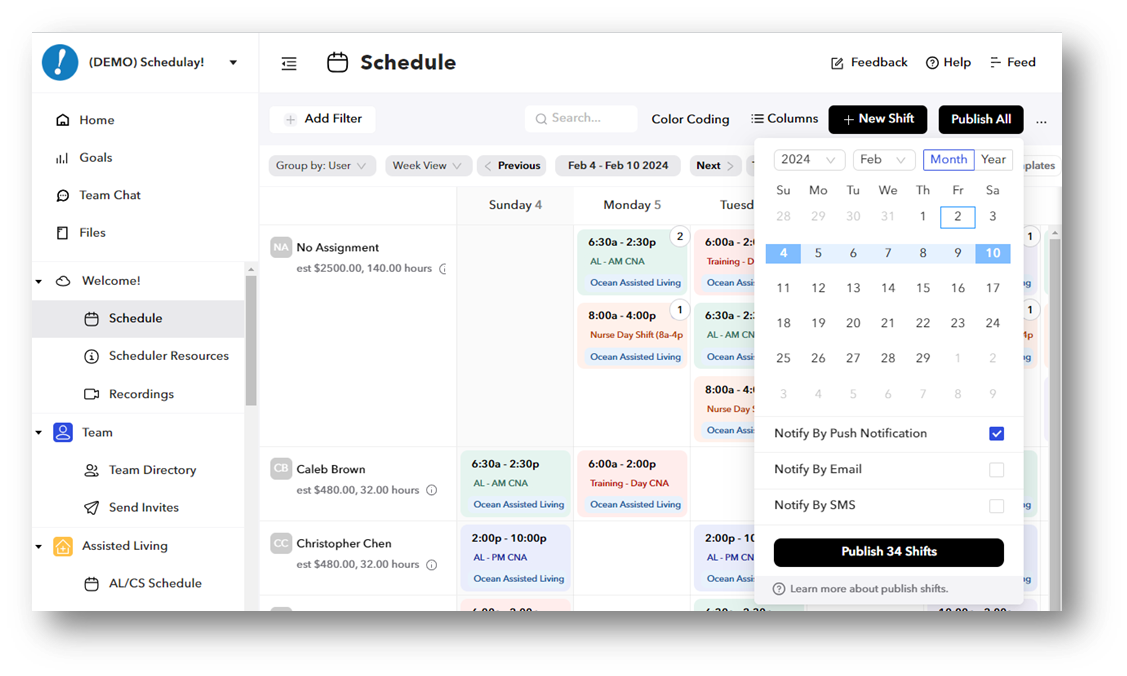
- Once you are ready to publish your schedule, select “Publish All” on the Scheduling Page.
- You can choose the date range and notification method(s) of the published schedule.
- Any shifts under “No Assignment” will be published as Open Shifts.
- You will see the number of shifts you are about to publish on the pop up after selecting “Publish All"
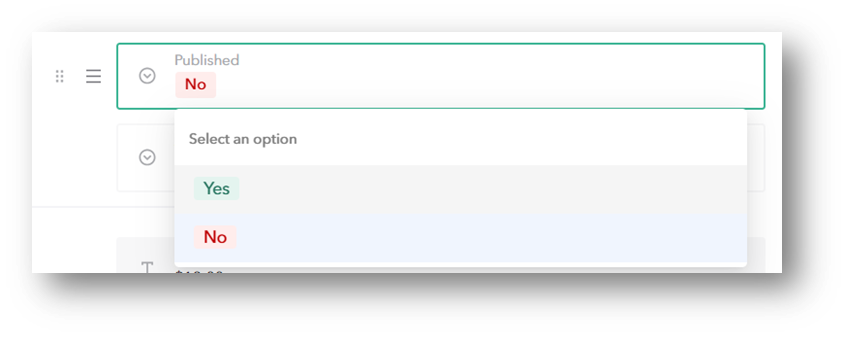
- Any shifts added to the schedule after you have published your schedule will also need to be published (unless you have shifts auto-publishing). This can be done by clicking on a single shift and selecting “Yes” on the “Published” drop down-menu. Or, if multiple shifts need to be published, you can select “Publish All” again (“Publish All” will only publish the new unpublished shifts.)
For any additional questions, please contact us at labor@procarehr.com and we would be more than happy to assist!
