
Article: Scheduler/Manager Login Instructions
Process:
- Navigate to the TeamBridge Login Page using the link here: https://app.teambridge.com/login
- **Tip: It is recommended to complete your first log-in using a laptop or desktop.
- Select ‘Register My Account’ (first time only – all future logins after registering your account will use the ‘Log In’ option)

- Email: By default, this is your primary email address in UKG – HOWEVER, your email address was likely updated to your work email (in TeamBridge) during implementation if you are a scheduler/manager!
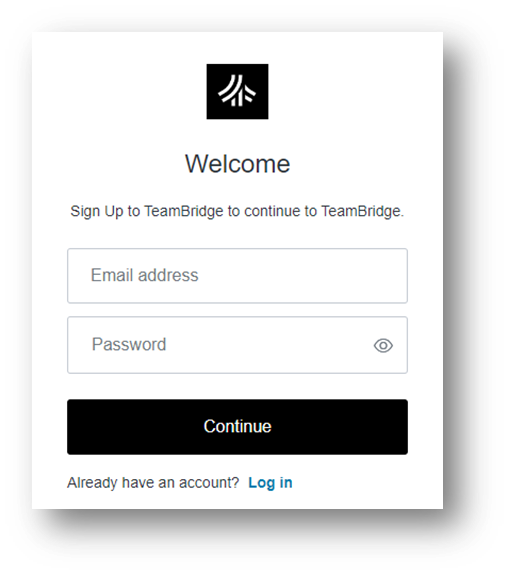
- Password: You choose! The first password you enter will be your password ongoing (This can be reset using the ‘forgot password’ link on the login page after you have registered your account.)
- Click ‘Continue,’ and you will receive a verification email where you will then select ‘Confirm My Account’. BE SURE TO CHECK SPAM FOLDERS
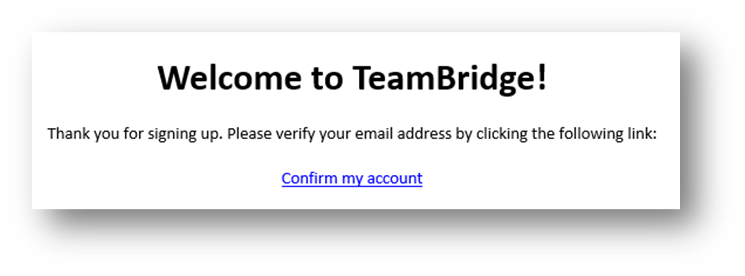
- After selecting ‘Confirm My Account’, all future logins should be completed by selecting the “Log In” option on the login page (not ‘Register My Account’.
- Once in the Web version of TeamBridge, you can download the mobile app and log in using the credentials you set (remember to turn on notifications!)
- You can find the app by searching “TeamBridge” in the App or Google Play Store, or by clicking the link here: https://tbridge.link/download


For any additional questions, please contact us at labor@procarehr.com and we would be more than happy to assist!
