
Article:
Video Reference: N/A
TeamBridge was designed for staff to access the system through the mobile app, but access has been set up so that select staff can view schedules via web browser in the event they are unable to download the app. If you can use the mobile app, it is highly recommended that you access your TeamBridge Schedule exclusively through the mobile app.
Process:
Initial Log-In (for Users that have NEVER logged in on the Web or Mobile)
- Navigate to TeamBridge by clicking the link here: https://app.teambridge.com/login 
- Please note: Your manager may have reached out to have your email verification completed in advance – if so, you can select “Log In” and enter the email and password provided. If they did not, you will need to follow the steps below.
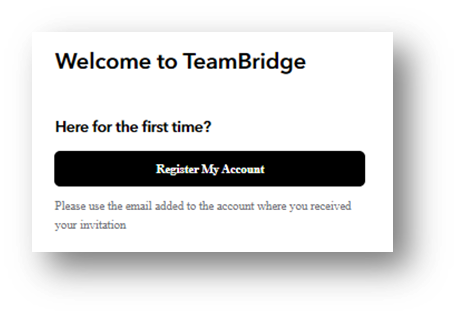
- Select “Register My Account”
- Enter your primary UKG email address you can confirm which email is in TeamBridge with your supervisor or by reaching out to labor@procarehr.com)
- Enter the password you would like to use ongoing
- Click “Continue”
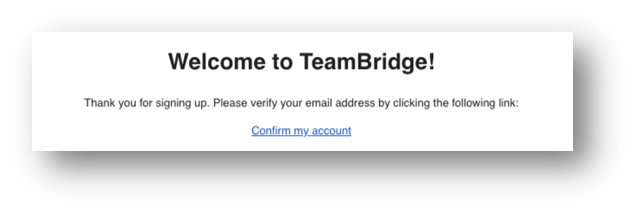
- You will then receive a verification email to the email you logged in with – click “Confirm my account” (be sure to check spam/junk folders in your email)
Navigating the Schedule Pages
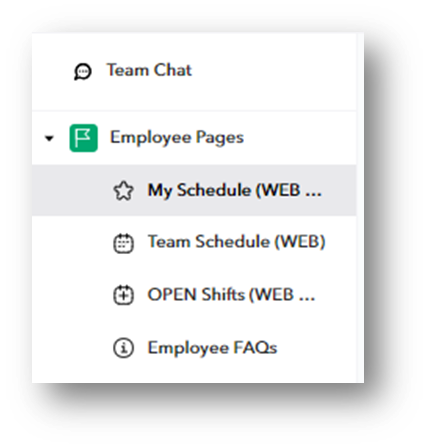
- Select “My Schedule” from the list on the left-hand side of the page to view your assigned shifts. By default, it will show a list view of your shifts, but you can also scroll down for a monthly calendar view
- Select “Team Schedule” from the list on the left-hand side of the page to see the full schedule for the location(s) and role(s) you are assigned
- Select “Open Shifts” to see openings on the calendar – pay close attention to the instructions on the page.
TeamChat
- You can use TeamChat to reach out to team members. However, you will want to make sure to check this often for messages from management if you do not have the app downloaded.
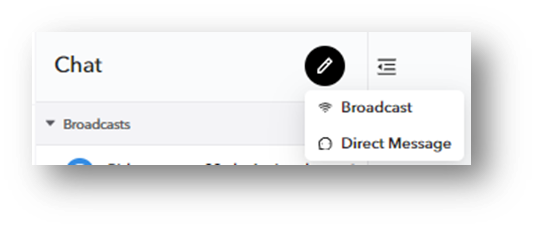
- After selecting “TeamChat” click the pencil icon and select “Direct Message.” From there, you will be able to type a single user or multiple users’ names to either send a message to a single user or a group of users.
For any additional questions, please contact us at labor@procarehr.com and we would be more than happy to assist!
