
Article: Copy and Paste Shifts on the Schedule
Process:
- If you are looking to easily copy existing shifts and paste them on other days or employees, you can use the simple “Copy & Paste” functionality, by following the below instructions.
- Login to TeamBridge via the Web and Navigate to your Calendar
 Hold the “SHIFT” button on your keyboard, and click on the shift you want to copy with your mouse (one or multiple)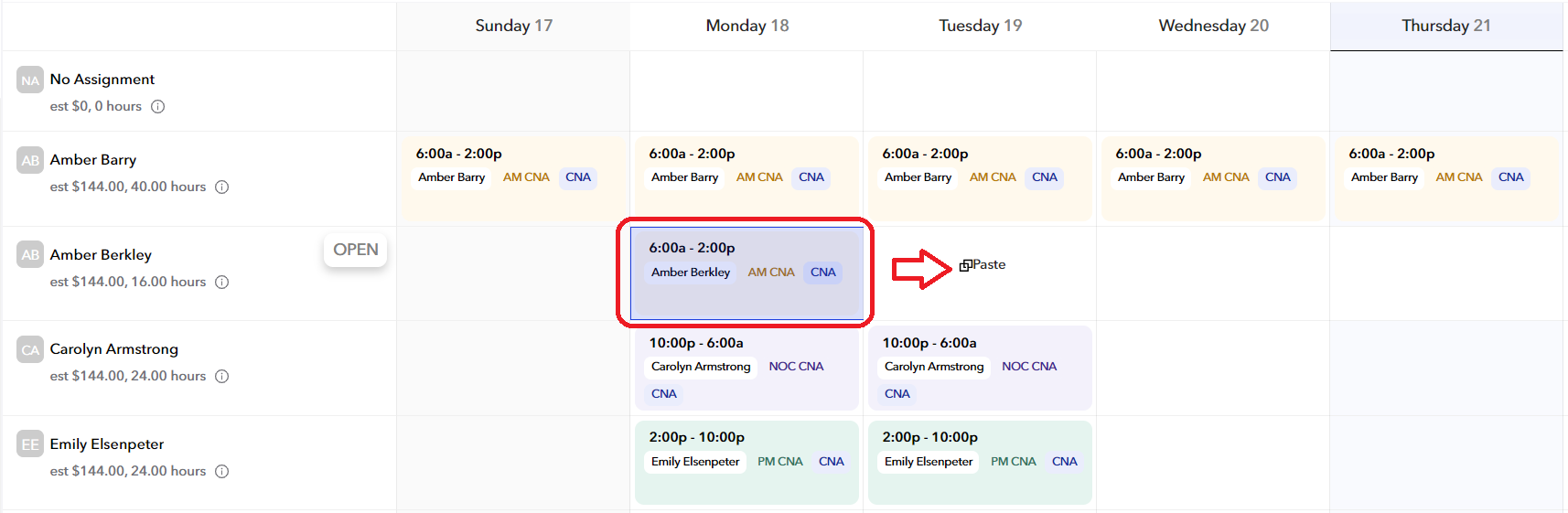
Simply click on any other day / employee where you want to copy the shift by using your mouse to click on any open day. Once you’re done pasting, click “Clear Selected” at the bottom of the screen. That will stop copying your selection.

For any additional questions, please contact us at labor@procarehr.com and we would be more than happy to assist!
